
Introduction:
Connectivity issues HSSGamepad users face can quickly ruin a smooth gaming experience. Whether the controller is not pairing, disconnecting during gameplay, responding slowly, or working on one device but not another, the problem can feel confusing at first.
In most cases, these problems are fixable. The issue usually comes from low battery power, wrong pairing mode, Bluetooth interference, outdated drivers, faulty USB cables, incorrect input settings, or device compatibility problems.
This guide explains the most common HSSGamepad connectivity issues, why they happen, how to fix them step by step, and how to prevent the same problems in the future.
Table of Contents
What Are Connectivity Issues HSSGamepad Users Usually Face?
Connectivity issues HSSGamepad users experience can appear in different ways depending on the device and connection type. Some problems happen before the controller connects, while others appear after it is already paired.
Common problems include:
- HSSGamepad not showing in the Bluetooth list
- Gamepad connects but does not work in games
- Controller keeps disconnecting again and again
- Buttons respond late or feel delayed
- USB connection is not detected on PC
- Wireless receiver or dongle is not pairing
- Gamepad works on mobile but not on Windows
- Controller light keeps blinking but pairing fails
- Buttons are mapped incorrectly
- Input lag during gameplay
These problems can happen on Android phones, Windows PCs, tablets, smart TVs, emulators, and cloud gaming platforms.
Why HSSGamepad Connectivity Problems Happen
Before fixing the issue, it is important to understand what may be causing it. A gamepad needs a stable connection between the controller and your device. When anything interrupts that connection, the controller may stop working properly.
Low Battery Power
Low battery is one of the most common reasons behind HSSGamepad connectivity issues. Even if the controller turns on, weak battery power can make the connection unstable.
A low battery may cause:
- Random disconnection
- Pairing failure
- Delayed button response
- Controller blinking without connecting
- Sudden power loss during gameplay
Charging the controller fully should always be the first step before trying advanced fixes.
Wrong Pairing Mode
Many gamepads support different connection modes for Android, iOS, Windows, Bluetooth, USB, and wireless dongles. If the HSSGamepad is in the wrong mode, it may connect but not work correctly.
For example, a controller set to Android mode may not work properly on Windows. Similarly, some PC games may need X-input mode instead of D-input mode.
Bluetooth Interference
Bluetooth connections can be affected by nearby wireless devices. Routers, wireless headphones, speakers, keyboards, smartwatches, and other Bluetooth accessories can weaken the signal.
When interference happens, you may notice:
- Input lag
- Random disconnection
- Slow response
- Pairing failure
- Unstable gameplay
Old Pairing Data
Sometimes your phone, PC, or tablet saves old pairing information. This old data can create conflicts when you try to reconnect the HSSGamepad.
The controller may show as paired, but it may not respond correctly. Removing the old Bluetooth profile and pairing again often solves this issue.
Outdated Drivers
On Windows PC, outdated Bluetooth, USB, or controller drivers can stop the HSSGamepad from working. This is common when the controller is detected but does not respond in games.
Driver issues can also cause USB connection failure, unstable Bluetooth pairing, or wrong button mapping.
Faulty USB Cable or Port
If you use the HSSGamepad with a USB cable, the cable must support data transfer. Some USB cables only charge devices and do not transfer input signals.
A damaged USB port or loose cable can also cause random disconnections.
Game or Emulator Settings
Sometimes the controller is working, but the game does not detect it. This usually happens when controller support is disabled or the wrong control layout is selected.
This issue is common in:
- Emulators
- Older PC games
- Mobile games without controller support
- Steam games with wrong input settings
- Cloud gaming apps
Quick Diagnosis Table for HSSGamepad Connectivity Issues
| Problem | Possible Cause | Best First Fix |
|---|---|---|
| HSSGamepad not showing in Bluetooth | Pairing mode not active | Restart pairing mode |
| Connects but does not work | Wrong input mode | Switch controller mode |
| Keeps disconnecting | Low battery or interference | Charge fully and reduce wireless devices |
| Buttons respond late | Weak Bluetooth signal | Move closer to the device |
| USB not detected | Bad cable or driver issue | Try another data cable |
| Works on mobile but not PC | Windows input mode issue | Use X-input mode if available |
| Light blinking but not connecting | Old pairing conflict | Forget device and pair again |
| Lag during gameplay | Signal interference | Remove nearby Bluetooth devices |
How to Fix Connectivity Issues HSSGamepad Step by Step
Follow these fixes in order. Start with the simple solutions first because most HSSGamepad connection problems are caused by basic setup issues.
Charge the HSSGamepad Fully
A weak battery can cause connection failure even when the controller turns on. Before changing settings, charge the gamepad completely.
Steps to follow:
- Connect the controller to a reliable charger
- Let it charge fully before testing again
- Avoid damaged charging cables
- Do not test while the battery is very low
- Check whether the controller stays powered on after charging
If the controller becomes stable after charging, the issue was most likely battery-related.
Restart the Controller and Device
A simple restart can clear temporary connection errors. This works well when the controller was working before but suddenly stopped connecting.
Steps:
- Turn off the HSSGamepad
- Turn off Bluetooth on your device
- Restart your phone, tablet, PC, or TV
- Turn the controller back on
- Enable Bluetooth again
- Try pairing from the beginning
This refreshes the connection and removes temporary glitches.
Forget and Re-Pair the HSSGamepad
Old Bluetooth data can stop the gamepad from connecting correctly. Removing the saved profile and pairing again is one of the most effective fixes.
On Android
- Open Settings
- Go to Bluetooth
- Find HSSGamepad in paired devices
- Tap Forget or Unpair
- Restart Bluetooth
- Put the controller in pairing mode
- Pair again
On Windows
- Open Settings
- Go to Bluetooth & devices
- Find the controller
- Remove the device
- Restart the PC
- Add the controller again
On iPhone or iPad
- Open Settings
- Go to Bluetooth
- Tap the information icon beside the controller
- Select Forget This Device
- Restart Bluetooth
- Pair the controller again
This step can fix repeated disconnections, pairing failure, and controller detection problems.
Use the Correct Pairing Mode
The HSSGamepad may support different modes depending on the model. Using the wrong mode can cause the controller to connect but not work properly.
Common modes include:
- Android mode
- iOS mode
- Windows mode
- Bluetooth mode
- USB wired mode
- 2.4GHz wireless mode
- X-input mode
- D-input mode
For modern PC games, X-input mode usually works better. For older games and emulators, D-input mode may be more useful.
Move the Controller Closer to the Device
Wireless gaming needs a stable signal. Even if Bluetooth can connect from a distance, gaming requires stronger and faster communication.
To improve signal strength:
- Keep the controller close to the device
- Avoid walls between the controller and device
- Do not place your phone or PC behind thick objects
- Keep the controller away from routers and speakers
- Avoid using the controller in a crowded wireless area
A shorter distance usually means fewer connection drops and less input delay.
Remove Bluetooth Interference
Bluetooth interference is a major reason for HSSGamepad input lag and unstable connection.
Try these fixes:
- Turn off unused Bluetooth devices
- Disconnect wireless headphones during gaming
- Move the Wi-Fi router away from the controller
- Avoid placing the controller near metal surfaces
- Keep the device in open space
- Close unnecessary wireless accessories
If the controller becomes stable after removing nearby devices, interference was likely the problem.
Check the USB Cable and Port
If you are using a wired connection, make sure your cable supports data transfer. A charging-only cable may power the controller but will not send button input to the device.
Check these points:
- Use a data-transfer USB cable
- Try another USB port
- Avoid loose ports
- Connect directly to the PC instead of a weak USB hub
- Test the cable with another device
- Restart the PC after connecting
For desktop computers, rear USB ports are often more stable than front USB ports.
Update Bluetooth and USB Drivers on Windows
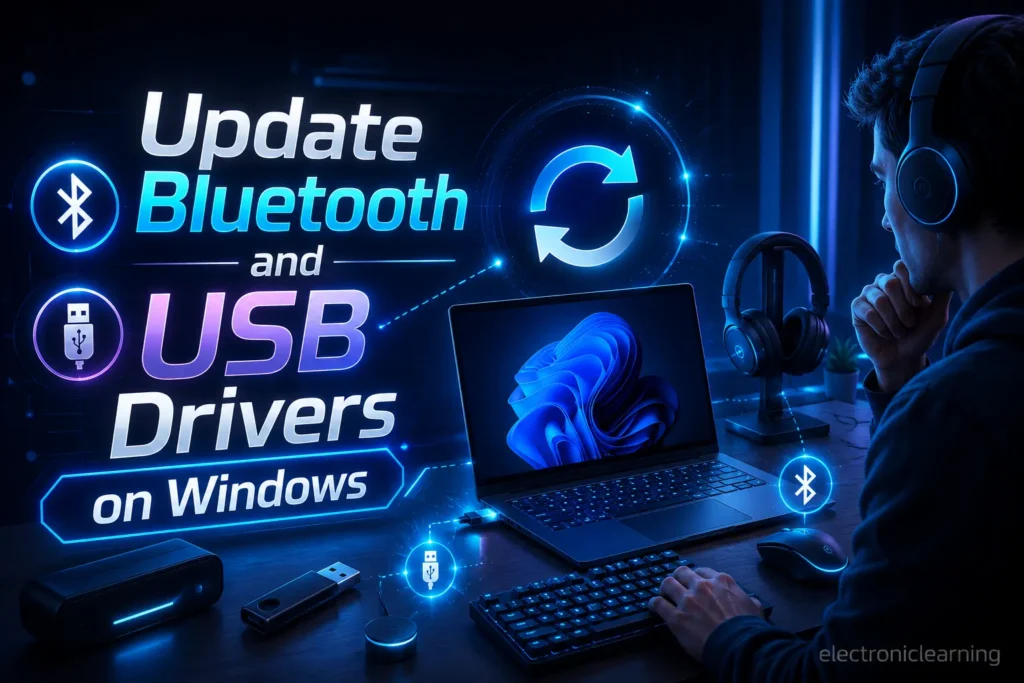
Windows users often face connectivity issues because of outdated or corrupted drivers.
Steps to update drivers:
- Right-click the Start button
- Open Device Manager
- Expand Bluetooth
- Right-click your Bluetooth adapter
- Select Update driver
- Expand Human Interface Devices
- Check for controller-related devices
- Update USB controller drivers if needed
- Restart your PC
If the controller appears with a warning icon, remove the device and restart the PC. Windows may reinstall the correct driver automatically.
Switch Between X-Input and D-Input
Some HSSGamepad models allow users to switch between X-input and D-input. This can fix problems where the controller connects but buttons do not work correctly.
X-Input Is Best For
- Modern Windows games
- Steam games
- Xbox-style controller layouts
- Plug-and-play PC gaming
D-Input Is Best For
- Older PC games
- Emulators
- Manual button mapping
- Legacy game support
If one mode does not work, switch to the other and test again.
Test the Controller Outside the Game
Sometimes the game is the problem, not the controller. Testing the HSSGamepad outside the game helps confirm whether the controller is working.
Try this:
- Test the gamepad with another game
- Use a controller testing tool on PC
- Try the controller on another device
- Check if the game supports external controllers
- Test both Bluetooth and USB mode
If the controller works in other games, the issue is with the game settings.
How to Fix HSSGamepad Connectivity Issues on Android
Android devices are commonly used with wireless gamepads, but settings can vary by phone brand and Android version.
Try these Android fixes:
- Turn Bluetooth off and on
- Forget the old HSSGamepad pairing
- Restart your phone
- Disable battery saver mode
- Keep the controller close while pairing
- Clear Bluetooth cache if your phone allows it
- Check if the game supports external controllers
- Try another controller-supported game
Some Android games do not support gamepads. In that case, the HSSGamepad may connect successfully but still not control the game.
How to Fix HSSGamepad Connectivity Issues on Windows PC
Windows PC users may face problems with drivers, input modes, Bluetooth adapters, or USB ports.
Try this checklist:
- Remove the controller from Bluetooth devices
- Restart the PC
- Pair the gamepad again
- Try X-input mode
- Update Bluetooth drivers
- Update USB drivers
- Use a data-transfer USB cable
- Try another USB port
- Check Steam controller settings
- Close other controller mapping apps
- Test the controller in another game
If you use Steam, check Steam Input settings because some games need it to detect controllers correctly.
How to Fix HSSGamepad Problems on iPhone or iPad
iPhone and iPad devices can be more selective with controllers. If the HSSGamepad does not connect, the issue may be pairing mode or compatibility.
Try these steps:
- Make sure the controller supports iOS mode
- Turn Bluetooth off and on
- Forget the previous pairing
- Restart the iPhone or iPad
- Put the controller in the correct iOS pairing mode
- Keep the controller close during pairing
- Test it with a game that supports controllers
If the controller does not appear at all, it may not be in the correct iOS-compatible mode.
How to Fix 2.4GHz Wireless Dongle Problems
Some HSSGamepad users connect through a 2.4GHz wireless receiver instead of Bluetooth. This can be more stable, but the receiver must pair properly.
Try these fixes:
- Insert the dongle directly into the device
- Avoid weak USB hubs
- Try another USB port
- Restart the device
- Keep the controller near the dongle
- Re-sync the controller and receiver if supported
- Check whether the receiver is damaged
- Make sure the controller is in 2.4GHz mode
If the dongle light does not turn on, the issue may be with the receiver or USB port.
Bluetooth vs USB vs 2.4GHz Connection
Choosing the right connection type can reduce HSSGamepad connectivity issues.
| Connection Type | Best For | Advantages | Possible Problems |
|---|---|---|---|
| Bluetooth | Mobile gaming and casual use | Wireless and easy to use | Can face interference and lag |
| USB Wired | PC gaming and stable play | Low delay and reliable connection | Limited movement |
| 2.4GHz Dongle | PC, TV, and wireless gaming | Often more stable than Bluetooth | Needs receiver |
| X-input Mode | Modern PC games | Better Windows compatibility | May not work with old games |
| D-input Mode | Emulators and older games | Good for manual mapping | May need extra setup |
For serious gaming, USB wired mode is usually the most stable. For mobile gaming, Bluetooth is more convenient when configured correctly.
Advanced Fixes for Persistent HSSGamepad Connectivity Issues
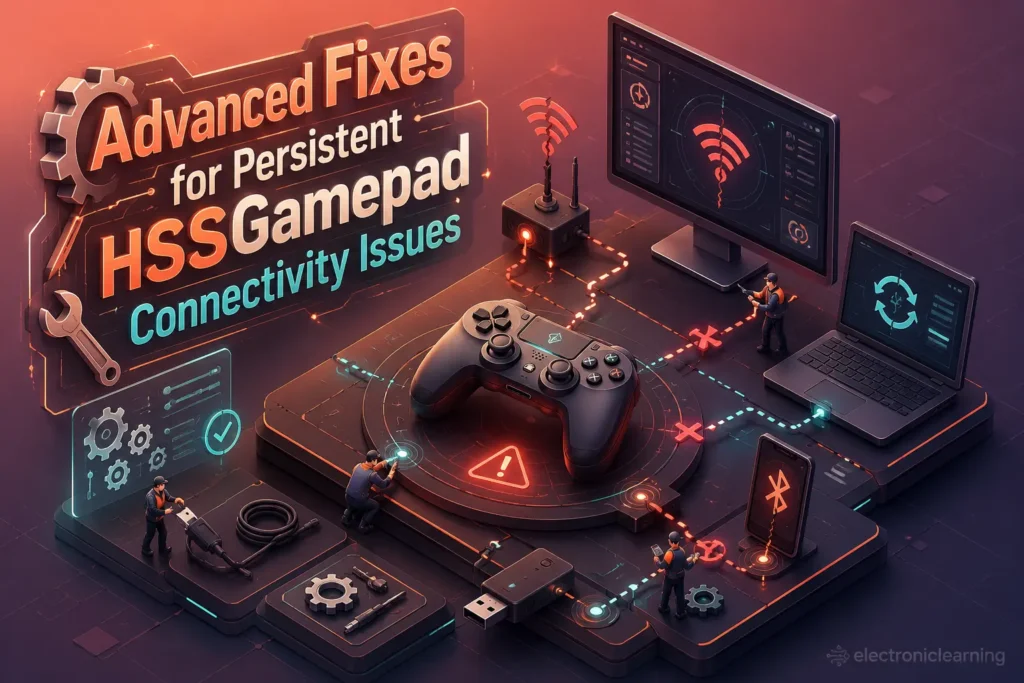
If basic troubleshooting does not solve the problem, try these advanced fixes.
Reset the Controller
Some HSSGamepad models include a reset button or reset combination. Resetting can clear internal connection errors.
General steps:
- Turn off the controller
- Find the reset button or reset combination
- Hold it for a few seconds
- Restart the controller
- Pair it again from the beginning
Use the reset method recommended for your specific model.
Clear Bluetooth Cache
On some Android phones, Bluetooth cache can create pairing conflicts.
General steps:
- Open Settings
- Go to Apps
- Show system apps
- Find Bluetooth
- Open Storage
- Clear cache
- Restart the phone
The exact steps may differ depending on your phone model.
Check for Firmware or Software Updates
Outdated software can affect controller compatibility and connection stability.
Check updates for:
- Gamepad firmware
- Mobile system software
- Windows Bluetooth drivers
- USB drivers
- Game launcher
- Steam client
- Emulator software
Keeping everything updated can prevent many connection problems.
May be you like it:
How to Run MenBoostermark Software – Complete Guide
MenBoosterMark Software Program – Complete Guide
New Software DH58GOH9.7 – Features, Benefits & Guide
Remove Conflicting Controller Apps
Controller mapping apps can sometimes interfere with normal gamepad input. If multiple apps try to control the gamepad at the same time, buttons may stop responding.
Try this:
- Close controller mapping tools
- Disable overlays
- Restart the game
- Test without third-party mapping apps
- Use only one controller tool at a time
This is especially useful for emulators and Android gaming setups.
How to Reduce HSSGamepad Input Lag
Input lag means your button press appears late on the screen. This can make racing, shooting, fighting, and action games difficult to play.
To reduce input lag:
- Keep the controller close to the device
- Use USB wired mode when possible
- Turn off unused Bluetooth devices
- Close background apps
- Disable battery saver mode
- Use performance mode on your device
- Lower game graphics settings if needed
- Avoid cheap USB hubs
- Restart the device before gaming
Not all delay comes from the controller. Sometimes lag comes from the game, emulator, screen, or device performance.
Signs the HSSGamepad Problem Is Hardware-Related
Most connectivity issues HSSGamepad users face are related to software, settings, or connection mode. However, hardware damage is also possible.
Signs of hardware problems include:
- Controller does not turn on after charging
- USB port feels loose
- Controller disconnects when moved slightly
- Battery drains very quickly
- Buttons fail on every device
- Gamepad is not detected by any phone or PC
- Controller only works while plugged in
- Bluetooth signal disappears immediately
- Wireless dongle does not light up
If the same problem happens on multiple devices after all fixes, the controller may need repair or replacement.
Best Practices to Prevent HSSGamepad Connectivity Issues
Once the controller is working again, follow these habits to keep the connection stable.
Keep the Battery Charged
Do not wait until the battery is completely empty. Charge the HSSGamepad before long gaming sessions.
Use One Main Device
Frequently switching between phone, PC, tablet, and TV can create pairing conflicts. If possible, use one main device or remove old pairings before switching.
Store the Controller Properly
Keep the controller in a clean, dry place. Avoid heat, moisture, dust, and pressure on the USB port.
Use a Quality USB Cable
For wired gaming, use a reliable data-transfer cable. A weak cable can cause random disconnection.
Keep Drivers Updated
For PC users, updated Bluetooth and USB drivers are important for stable controller detection.
Avoid Wireless Interference
Turn off unnecessary Bluetooth devices while gaming. This helps reduce input lag and disconnection.
Check Game Compatibility
Not every game supports external controllers. Always test with a controller-supported game before assuming the HSSGamepad is faulty.
Common Mistakes That Make HSSGamepad Problems Worse
Avoid these mistakes when troubleshooting:
- Trying to pair with low battery
- Using the wrong mode for your device
- Keeping old Bluetooth profiles saved
- Testing only one game
- Using a charging-only USB cable
- Ignoring Windows driver issues
- Playing too far from the device
- Keeping too many Bluetooth devices active
- Using damaged ports or loose cables
- Forgetting to check game controller settings
Small setup mistakes can make the controller seem broken even when it is working fine.
HSSGamepad Troubleshooting Checklist
Use this checklist when your HSSGamepad is not connecting properly:
- Charge the controller fully
- Restart the controller and device
- Forget old pairing and reconnect
- Use the correct pairing mode
- Keep the controller close
- Turn off unused Bluetooth devices
- Try another game
- Try another device
- Test wired USB mode
- Use a data-transfer cable
- Update Windows drivers
- Check game controller settings
- Switch between X-input and D-input
- Reset the controller if needed
- Inspect cable, port, and battery condition
This step-by-step process helps you find the real cause instead of guessing.
FAQs
Why is my HSSGamepad not connecting?
Your HSSGamepad may not connect because of low battery, wrong pairing mode, old Bluetooth data, device compatibility issues, or wireless interference. Start by charging the controller, forgetting the old pairing, restarting Bluetooth, and pairing again.
Why does my HSSGamepad keep disconnecting?
Repeated disconnection usually happens because of weak battery power, poor Bluetooth signal, interference from other wireless devices, or an unstable USB cable. Charge the controller fully, reduce nearby wireless devices, and test another cable if using wired mode.
Why is HSSGamepad connected but not working in games?
This usually means the game does not support controllers, the wrong input mode is selected, or the game needs manual controller setup. Check the game settings, switch input mode if available, and test the controller in another game.
How do I fix HSSGamepad input lag?
To reduce input lag, keep the controller close to the device, remove Bluetooth interference, close background apps, turn off battery saver mode, and use wired USB mode when possible.
Does HSSGamepad work better with Bluetooth or USB?
USB is usually more stable and has lower delay, especially for PC gaming. Bluetooth is more convenient for mobile gaming but can be affected by distance, interference, and pairing conflicts.
Why is my PC not detecting HSSGamepad?
Your PC may not detect the gamepad because of outdated drivers, a faulty USB cable, wrong input mode, or Bluetooth adapter issues. Try another USB port, update drivers, remove the controller from Bluetooth settings, and reconnect it.
Can a damaged cable cause HSSGamepad connectivity issues?
Yes. A damaged or charging-only USB cable can stop the controller from sending input signals. Use a proper data-transfer cable and test another USB port to confirm the issue.
What should I do if nothing fixes the problem?
Test the HSSGamepad on another device. If it fails everywhere after charging, resetting, changing cables, and re-pairing, the issue may be hardware-related. The battery, USB port, Bluetooth module, or internal board may be faulty.
Conclusion
Connectivity issues HSSGamepad users face are usually caused by low battery power, wrong pairing mode, Bluetooth interference, outdated drivers, faulty cables, or unsupported game settings. Most of these problems can be fixed without replacing the controller.
Start with simple steps such as charging the controller, restarting both devices, forgetting the old pairing, and reconnecting with the correct mode. If the issue continues, test USB mode, update drivers, reduce wireless interference, and check the game’s controller settings.
A stable HSSGamepad connection gives you smoother gameplay, faster response, and fewer interruptions. With the right setup and regular care, you can prevent most connection drops, pairing failures, and input lag problems before they affect your gaming experience.